GitHub SSO for AlmaForge
AlmaForge can authenticate users against GitHub and map
GitHub organization teams to AlmaForge roles. GitHub is
not a generic OIDC provider. It uses a plain OAuth2 flow with a
provider-specific team membership API, so AlmaForge represents
GitHub integrations as a dedicated resource kind rather than
reusing
OIDCConnector. The
integration is built into almad. Configure it with a
GithubConnector
resource.
This page is about authenticating AlmaForge users with GitHub as the SSO provider. If you are here because you want to use AlmaForge as the SSH Certificate Authority for a GitHub organization (so engineers push and pull git over SSH with short-lived AlmaForge certificates instead of uploading personal SSH keys to github.com), see GitHub SSH CA. The two integrations solve different problems and can run side by side on the same organization.
TL;DR
- Create a GitHub OAuth app under the organization and copy the client ID and secret (Step 1).
- Write a
GithubConnectorYAML with the org slug and team slugs (Step 2). - Run
alma apply -f github.yaml. - Verify by logging in and picking GitHub on the sign-in page (Step 3).
Prerequisites
Before you start, make sure you have:
- A running AlmaForge cluster with an Auth Service that you
can reach over the network and a working
almaCLI pointed at it. - A GitHub organization with at least one team. Personal GitHub accounts without an org cannot be used.
- A supported GitHub deployment:
- GitHub Cloud (
github.com). - GitHub Enterprise Server.
- GitHub Cloud (
- If your GitHub organization already authenticates through another SSO provider, this integration still works. If that upstream provider is your source of truth for users and groups, AlmaForge should usually connect to that provider directly instead of chaining through GitHub.
- Permission to create and manage an OAuth app that is controlled by the organization. Do not use an OAuth app that is owned only by one engineer's personal GitHub account. See the warning in Step 1 for why.
- Outbound HTTPS egress from
almadto the following hosts from every auth node:- GitHub Cloud:
github.comandapi.github.com(TCP/443). - GitHub Enterprise Server: the hostnames you plan to use
for
endpointURLandapiEndpointURL.
- GitHub Cloud:
- The public address of your AlmaForge Proxy Service, for
example
almaforge.example.com. - Recommended: read Break-glass access before you apply this connector on a production cluster.
Configuration
Step 1. Create a GitHub OAuth app
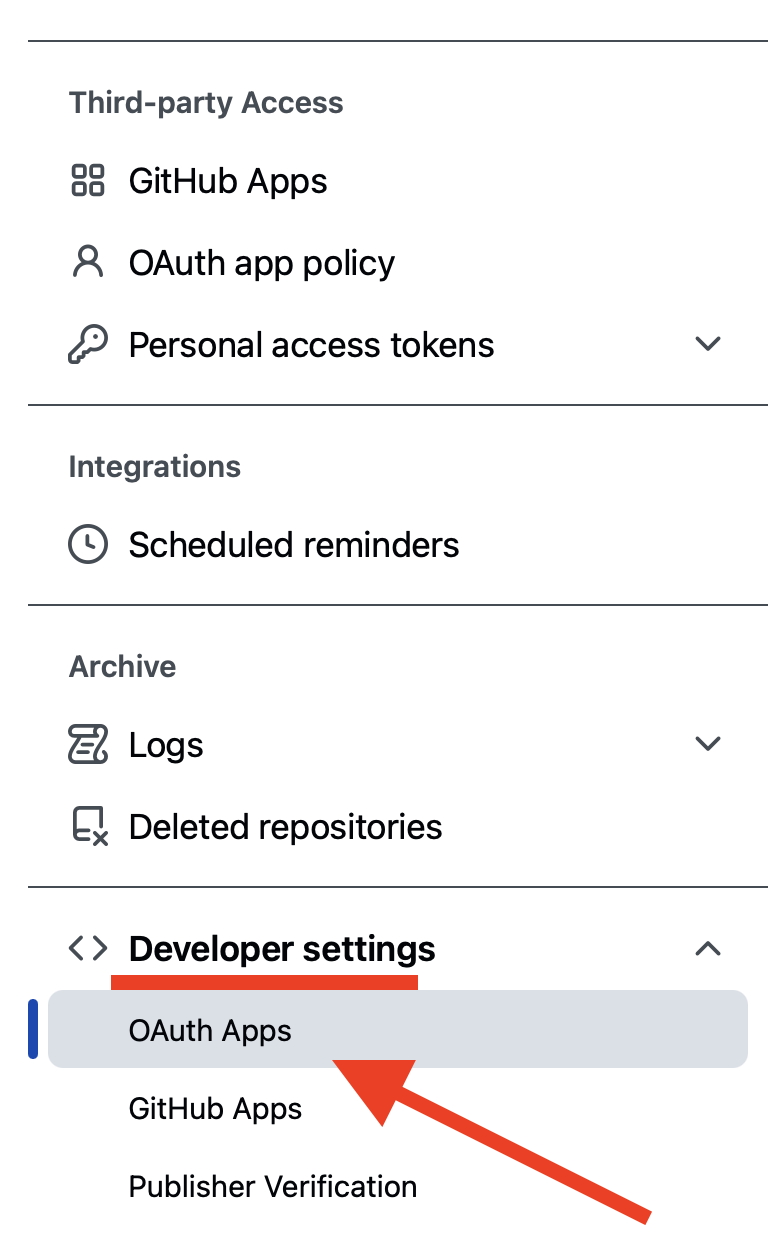
Sign in to GitHub as an org owner and open Settings → Developer settings → OAuth Apps → New OAuth App. Fill in:
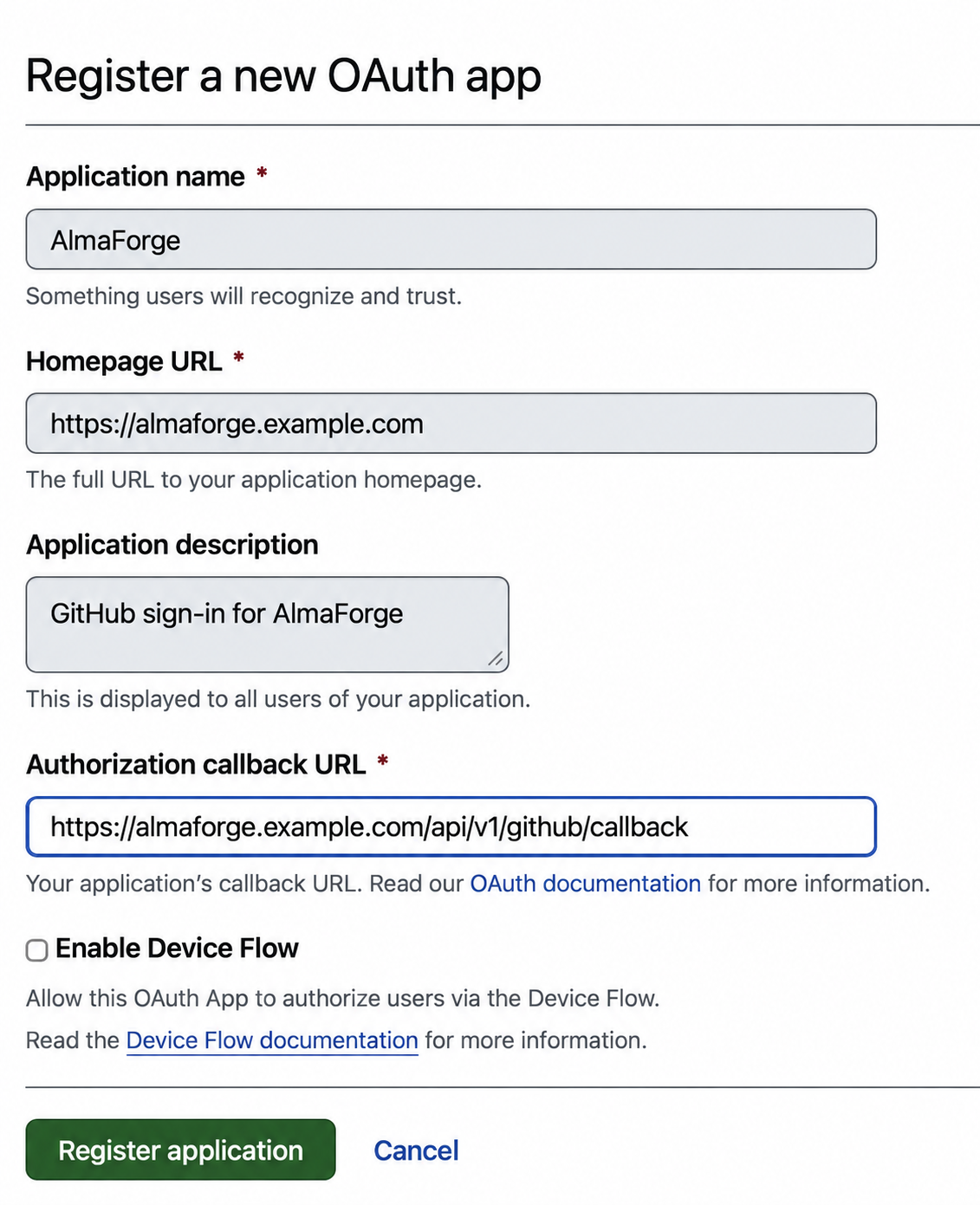
- Application name: something recognizable, for example
AlmaForge. - Homepage URL:
https://almaforge.example.com. - Application description:
GitHub sign-in for AlmaForge. - Authorization callback URL:
https://almaforge.example.com/api/v1/github/callback, substituting your own proxy host. - Enable Device Flow: leave unchecked.
Click Register application.
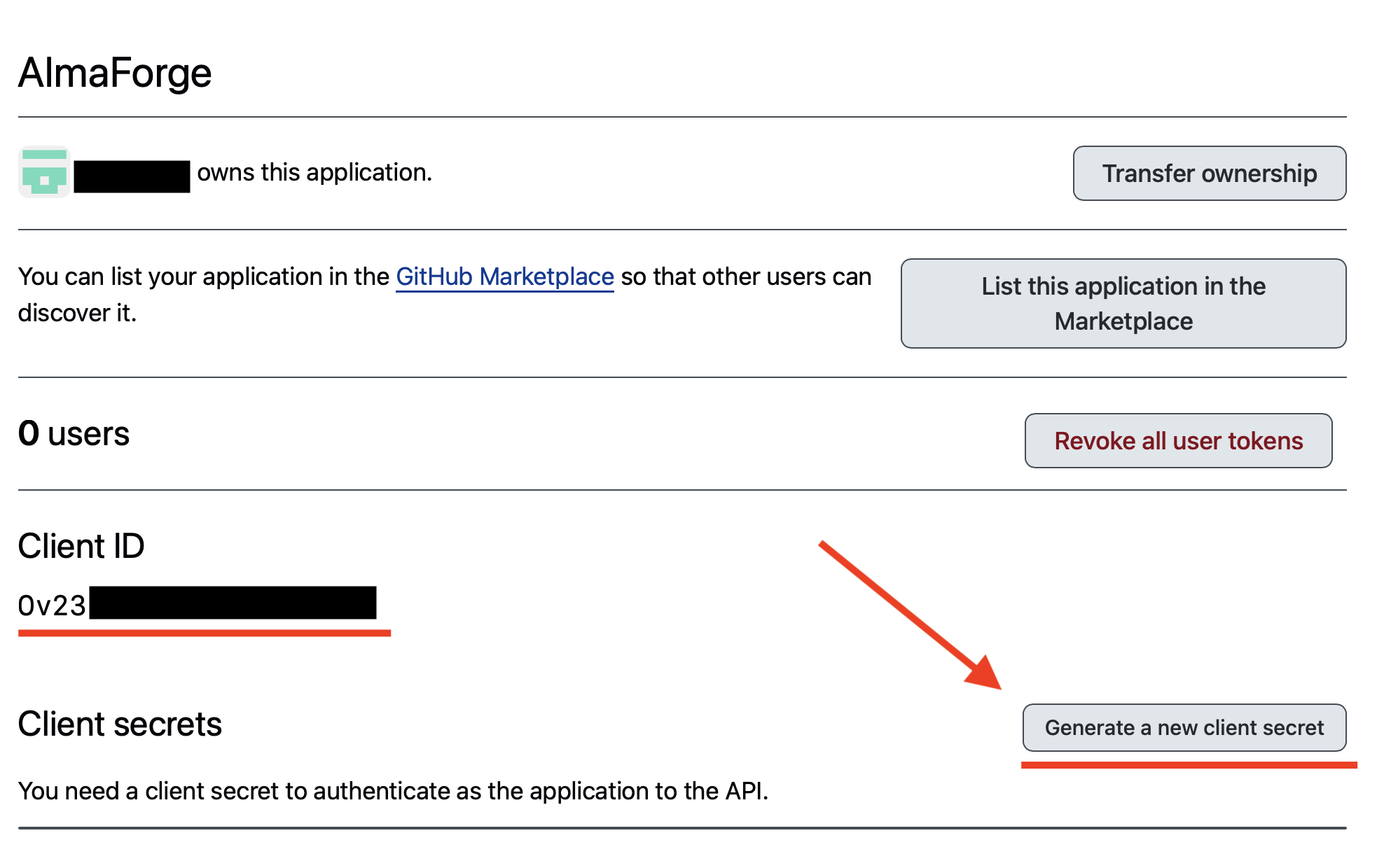
On the new application's page, copy the Client ID and click Generate a new client secret to produce a Client Secret. Copy the secret immediately. GitHub will not show it again after you leave the page.
Anyone with the client secret can impersonate AlmaForge to GitHub's OAuth endpoints. Store it in the same secret manager you use for production credentials.
Do not let this integration depend on an OAuth app that exists only under one engineer's personal GitHub account. When that person leaves the company, loses org access, or rotates ownership, the app disappears and every SSO login through it fails with no warning. Create the OAuth app under the organization (or under a company-owned user account with a documented successor) and record the owner in your runbook.
If you want GitHub's own click path for this screen, see Creating an OAuth app.
Step 2. Configure a GithubConnector
Write a YAML file describing the connector:
# GitHub OAuth connector with organization team-to-role mappings.
apiVersion: almaforge.com/v1
kind: GithubConnector
metadata:
  name: github
spec:
  display: GitHub
  clientID: <client-id>
  clientSecret: <client-secret>
  teamsToRoles:
    - organization: example-org
      team: sre
      roles: [admin, access]
    - organization: example-org
      team: developers
      roles: [access]
    - organization: example-org
      team: interns
      roles: [access]
Replace:
<client-id>and<client-secret>with the values from Step 1.organizationwith your GitHub org's slug. This is the value that appears in the URL when you visithttps://github.com/orgs/<org>. Org display names with spaces, capital letters, or Unicode characters will not work. Always use the slug.teamwith the GitHub team's slug, for the same reason. A team calledSite Reliabilityhas the slugsite-reliability. Read it off the URLhttps://github.com/orgs/<org>/teams/site-reliability.
Each teamsToRoles entry assigns a list of AlmaForge roles to
every member of the named team. You can list multiple entries
for the same org or across different orgs. A user who is in
several listed teams receives the union of the roles.
GitHub Enterprise Server
If you use GitHub Enterprise Server, also set:
# GitHub Enterprise Server connector with organization team mappings.
apiVersion: almaforge.com/v1
kind: GithubConnector
metadata:
  name: github
spec:
  display: GitHub Enterprise
  endpointURL: https://github.example.com
  apiEndpointURL: https://github.example.com/api/v3
  clientID: <client-id>
  clientSecret: <client-secret>
  teamsToRoles:
    - organization: example-org
      team: sre
      roles: [admin, access]
endpointURL is the base URL of your GHES installation.
apiEndpointURL is the REST API base. On most GHES
installations, it is <endpoint>/api/v3. The callback URL is
still /api/v1/github/callback. Update the
egress list to use the GHES hostnames instead
of github.com and api.github.com.
GitHub organization names and team names in the connector must
be slugs, not the display names shown in the UI. GitHub
lowercases the name, normalizes special characters, and
replaces spaces with -. For example, My Team Näme becomes
my-team-name. The GitHub web UI URL or the GitHub API is the
easiest way to confirm the slug.
AlmaForge has no local accounts. If this is the only connector, a wrong claim mapping or expired client secret prevents new logins. Confirm your break-glass procedure works before applying the connector to a production cluster.
Apply the connector:
alma apply -f github.yamlStep 3. Verify the connector
Open the cluster's audit log for your test account. See SSO verification for event fields and the distinction from service logs.
Sign out and log in through GitHub:
alma logoutalma login --proxy=almaforge.example.comA browser opens the cluster's sign-in page. Choose GitHub. If
this is the user's first login through the app, GitHub shows a
consent screen requesting access to read:org and lets the user
choose which organizations to grant. After approval, GitHub
redirects back to the proxy and alma prints the
assigned roles.
read:org lets AlmaForge read the user's GitHub organization and
team membership. You do not configure that scope on the OAuth app
page. AlmaForge requests it during sign-in, and GitHub shows it
on the consent screen.
A successful first-time login emits a UserLogin event and the
CertificateCreate event for the certificate it mints:
{
  "kind": "AuditEvent",
  "apiVersion": "almaforge.com/v1",
  "spec": {
    "id": "9b4d2e71-0c83-4a15-9e26-3f7a8b9c0d1e",
    "index": 0,
    "timestamp": "2026-03-30T15:58:58.999000Z",
    "clusterName": "almaforge.example.com",
    "code": "T1001I",
    "type": "UserLogin",
    "verb": "login",
    "actor": {
      "name": "alice",
      "type": "user"
    },
    "status": {
      "success": true
    },
    "userLogin": {
      "method": "github",
      "attributes": {
        "connector_id": "github",
        "connector_type": "github",
        "github_org_to_teams": {
          "example-org": [
            "sre",
            "developers"
          ]
        },
        "github_teams": [
          "sre",
          "developers"
        ],
        "github_username": "alice",
        "username": "alice"
      }
    }
  }
}
{
  "kind": "AuditEvent",
  "apiVersion": "almaforge.com/v1",
  "spec": {
    "id": "4e5f6a7b-8c9d-40e1-a2b3-c4d5e6f70819",
    "index": 0,
    "timestamp": "2026-03-30T15:58:58.999000Z",
    "clusterName": "almaforge.example.com",
    "code": "TC000I",
    "type": "CertificateCreate",
    "verb": "create",
    "certificateCreate": {
      "certType": "user",
      "identity": {
        "user": "alice",
        "roles": [
          "access"
        ],
        "logins": [
          "tester",
          "ec2-user",
          "root",
          "alice"
        ]
      }
    }
  }
}
The key field to check is github_teams. It lists the
team slugs GitHub returned for the user, filtered by the
organizations GitHub itself exposed to the OAuth app. Each
value in your teamsToRoles entries must match one of these
slugs verbatim. github_org_to_teams shows the same slugs
grouped by organization. If github_teams is empty or missing
the team you expect:
- The user skipped the org on the GitHub consent screen. Have them revisit Settings → Applications → Authorized OAuth Apps on GitHub and grant access.
- The org has OAuth app access restrictions enabled and the AlmaForge app has not been approved. An org owner needs to grant the app access under Organization settings → Third-party access → OAuth app policy.
- The
organizationorteamvalue in the connector is a display name rather than a slug.
After a successful login, you can also run
alma get user/<username> -o yaml and inspect spec.traits.teams.
Read the full audit-event breakdown on the
generic OIDC verification section.
The event codes and structure are the same for GithubConnector
as for OIDCConnector.
If UserLogin shows success:true and lists the expected team
slugs under github_teams, the integration is working. For
running it in production, see Operations.
Troubleshooting
Start with the exact GitHub error or the login symptom you see.
The redirect_uri is not associated with this application.
GitHub returns The redirect_uri is not associated with this application. when the Authorization callback URL in the
OAuth app differs from the URL AlmaForge sends as
redirect_uri. AlmaForge sends
https://<proxy_public_addr>/api/v1/github/callback with port
443 omitted. Register that exact string in the GitHub OAuth
app and retry.
No roles match the login
The GitHub sign-in completed, but AlmaForge rejects the login
when no team mapping grants a role. Either the user is not a member of any listed team, or
the organization and team fields in teamsToRoles are not
slugs. Visit https://github.com/orgs/<org>/teams/<team> and
verify the URL. The last two path segments are the values you
should put in the connector. Confirm the user actually sees
their teams on the GitHub consent screen. Public and private
teams both work here, as long as the user is actually a member
and GitHub returns that membership during login. Team changes affect
the next login. See Revocation window for existing
credentials. If the login succeeds but
the stored identity still looks wrong, inspect the user record as
described in
Claims, traits, and role templates.
Organization consent required
The org has OAuth app access restrictions enabled, and the AlmaForge OAuth app has not been approved. An org owner needs to grant the app access under Organization settings → Third-party access → OAuth app policy on GitHub. Affected users see the org listed on the consent screen with a "Request" button instead of "Grant".
GitHub returns 401 Bad credentials
401 Bad credentials from the GitHub API in the auth service
logs. The client ID and client secret in the connector do not
match what GitHub has on file. Re-copy both values from the
OAuth app settings page and re-apply the connector.
GitHub returns 404 Not Found
The GitHub API returns 404 Not Found on token exchange,
typically after the OAuth app was deleted on GitHub. Create a
new OAuth app under the organization
(Step 1), update the
connector with the new client ID and secret, and re-apply.
GitHub returns 403 or 429
This usually means GitHub rate limiting during token exchange or
team lookup. GitHub documents 403 and 429 for rate-limit
failures. 403 by itself does not always mean rate limiting, so
check the GitHub response body in the auth journal first. Reduce
login bursts, verify the app still has org approval, and check
Rate limits and capacity planning
for the GitHub.com request budgets this connector uses.
Operations
Break-glass access
Use break-glass access on an Auth host
to recover a broken github connector, including during a GitHub outage.
Revocation window
GitHub team membership is checked only at login time. If a user no longer belongs to any mapped team, is disabled in GitHub, or loses access to the OAuth app, they cannot start a new AlmaForge login through that connector.
This does not terminate a session that already exists. Existing
certificates can authorize new connections until expiry unless you
lock the user. Ending active
sessions at expiry also requires disconnectExpiredCert.
The default certificate lifetime is 12 hours unless the
AuthConfig default session TTL or a role-specific max session
TTL shortens it. See Access changes
for the generic session and revocation behavior.
Secret storage
Keep clientID and clientSecret outside the manifest for production.
Use the file or environment forms in
Secret storage, including its rotation and
backup guidance.
Multiple connectors
When using a GithubConnector alongside an OIDCConnector, follow
Claims, traits, and role templates
for cross-connector identity and trait handling.
Configuration changes and recovery
Apply GithubConnector changes before testing the next login. No
almad restart is needed. The
shared change lifecycle
applies, except that GitHub does not use OIDC discovery.
Keep the connector YAML in Git. The connector lives in the
cluster state store. Recovery is a normal apply against the
saved manifest.
High availability
Every auth node talks to the GitHub API independently. See High availability on the generic OIDC page for the full list of per-instance assumptions. The discovery cache discussion does not apply (GitHub does not use OIDC discovery), but the per-instance egress guidance still does.
Egress requirements
Auth hosts require outbound TCP/443 to:
- GitHub Cloud:
github.comandapi.github.com. - GitHub Enterprise Server: the hostnames configured in
spec.endpointURLandspec.apiEndpointURL.
No inbound connectivity from GitHub is required, and the integration does not open any listening sockets.
For GHES, outbound access to the GHES hostnames is enough for
this integration. GHES itself may still talk to github.com
for unrelated features, but AlmaForge does not need that path.
Rate limits and capacity planning
GitHub.com uses two different budgets in this flow:
- AlmaForge exchanges the OAuth code for an access token once per login. GitHub documents a secondary limit of no more than 2,000 OAuth access token requests per hour for GitHub Apps and OAuth apps.
- After the token exchange, AlmaForge makes at least two REST
API calls per login:
GET /userandGET /user/teams. Users in many teams can trigger extraGET /user/teamspages.
The 2,000 token-request limit is per OAuth app across the whole cluster. Adding auth nodes does not increase it or divide it. OAuth access tokens generated by an OAuth app use the authenticated user's REST API budget. GitHub documents 5,000 requests per hour for authenticated users. That REST budget is combined with the user's other API activity, including personal access tokens and other apps. GitHub Enterprise Server uses instance-local rate limits instead.
The auth service does not retry token exchange or GitHub API reads in this flow, so short GitHub 5xx spikes show up as immediate login failures.
Monitoring
There are no GitHub-specific Prometheus metrics today. The auth
service only exposes generic counters such as user_login_total
and user_certificates_generated. The generic counters do not
break down failures by connector.
For GitHub-specific signal, monitor the audit log for login outcomes and the Auth and Proxy journals for diagnostic errors. On each service host, tail the journal with:
journalctl -u almad -f | grep -i githubCheck UserLogin failures and their spec.status.error field. See
SSO verification for event codes,
certificate fields, and debug-only journal copies. GitHub API errors
include the HTTP status and GitHub's description in the Auth journal.
Collect records from
audit event storage for SIEM ingestion.
Collect service diagnostics from the journal separately.
There is no built-in GitHub connector dry-run or synthetic login
probe today. For automation, alert on UserLogin failures with
method:github in the audit stream and on auth:github errors
in the auth journal.
Removal
Delete the connector resource:
alma delete githubconnector/githubAfter deletion, GitHub sign-in stops working and team-to-role
mappings stop being applied on future logins. Users are not
deleted from AlmaForge. Delete orphaned dynamic users
separately if you do not want to keep them in inventory:
alma delete user/<name>. See
Revocation window for the session TTL
behavior.
You may also want to delete the OAuth app on GitHub so the client ID and secret can no longer be used. Users can independently revoke their personal grants under Settings → Applications → Authorized OAuth Apps on GitHub.